Set up an engagement
Create an engagement, build its plan of sessions and events, and add its automated emails.
Last updated 22 October 2026
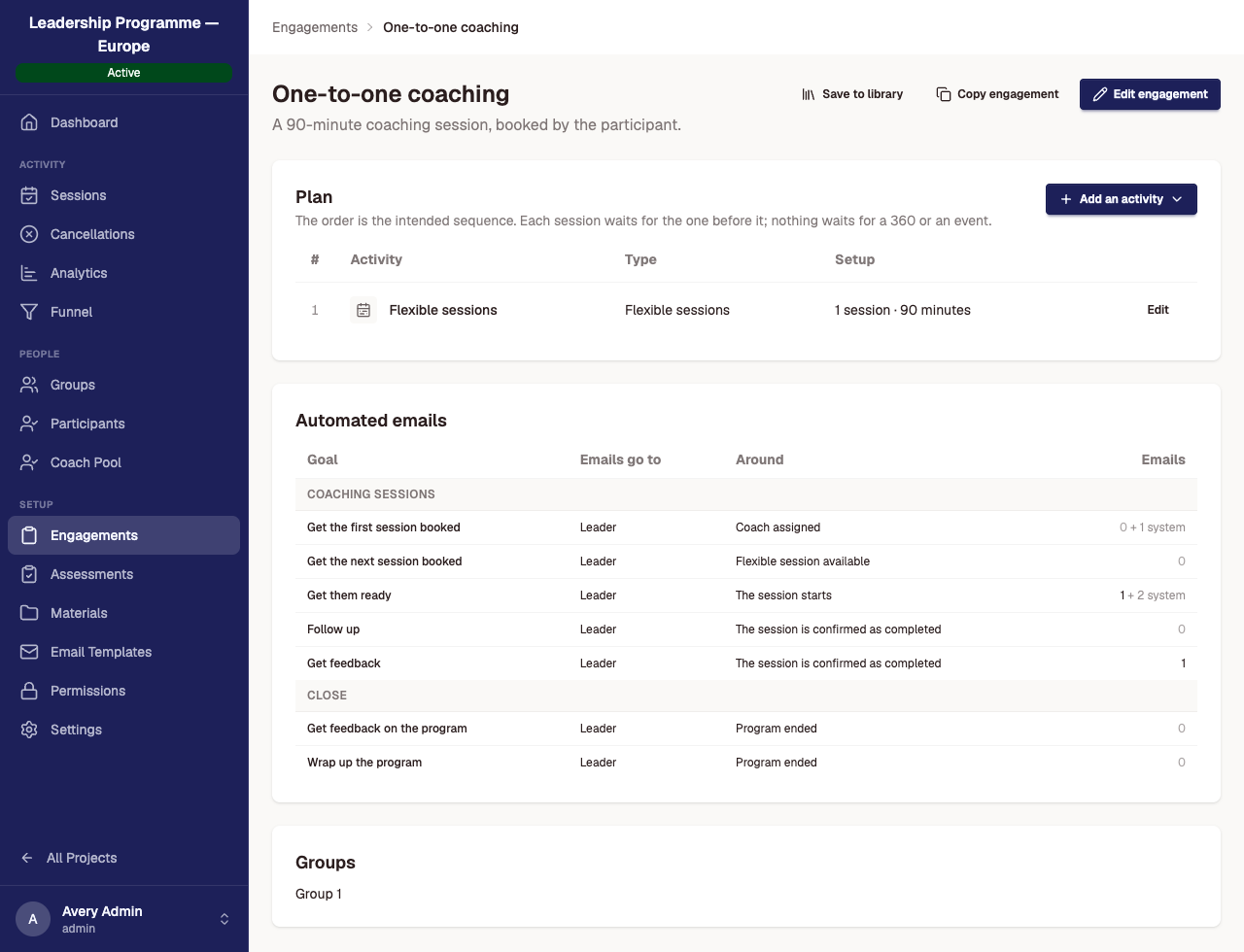
What an engagement is
An engagement is the plan a group of participants works through. It has three parts:
- the plan: the sessions, events and 360s, in order;
- the flexible sessions: an optional number of sessions participants book when they need them;
- the automated emails: reminders, reports and surveys that send around those activities.
Every group in a project uses one engagement, and several groups can use the same one. A change to an engagement reaches every group that uses it straight away.
Create an engagement
- Open the project and select Engagements in the project menu.
- Select New engagement.
- Type a Name, and a Description if you want one.
- Under Flexible sessions, choose None for a fixed programme, or Up to a number of sessions, or Unlimited. Then choose the Session length.
- Select Create. The engagement appears in the list. Select its name to build the plan.
You can also create an engagement while adding a group: choose + New Engagement in the group's Engagement list. To start from an existing engagement instead, see Copy an engagement and Reuse an engagement from the library.
Build the plan
On the engagement's page, select Add an activity and choose what to add:
| Activity | Use it for |
|---|---|
| Session | One coaching session, booked in its place in the plan. Not offered in ad-hoc projects. |
| Flexible sessions | A number of sessions participants book as they go. An engagement has at most one. |
| Event | A meeting, such as a three-way meeting with the participant's manager. You choose whether the participant attends. |
| 360 feedback | Raters are nominated, then give feedback. Shown only when your account has the 360. |
Each activity has a name and, for sessions and events, a length. Two settings need care:
- Who has it: Everyone, or Released one by one. A session released one by one stays out of a participant's plan until an admin releases it for them.
- The leader attends (events only) can't be changed after the event is added. To change it, remove the event and add it again.
New activities go to the end of the plan. To change the order, select Reorder activities. Once a planned session has been booked, sessions keep their order; other activities can still move.
The order participants book in
The project decides whether planned sessions are booked in order. Open the project's Settings, and under Session Booking set Booking Mode:
- In order: a participant can't book session 2 until session 1 is booked, and session 2 must be on a later day.
- Any order: participants book planned sessions in any order.
Flexible sessions, events and 360s are never held back by this setting. Coaches and admins who book for a participant aren't held back either, so your own test bookings won't show the rule.
Change or remove an activity
Select Edit on the activity's row. To remove it, select Remove in the dialog. An activity that already has bookings can't be removed; Matchwell offers Retire instead. Nobody can book a retired activity, booked sessions still go ahead, and delivered sessions stay in each participant's history. You can tick sessions to cancel at the same time. A retired activity can be brought back with Restore.
To change the number of flexible sessions, see Give participants more sessions.
Automated emails
The Automated emails table lists the goals the engagement's emails work towards, such as Get the first session booked or Get feedback. When a goal is met, for example when the participant books, the remaining emails for that goal stop.
The Emails column counts the emails you have added, then the standard emails Matchwell sends anyway. 0 + 1 system means you have added none, and Matchwell sends one standard email, such as the booking confirmation.
Add an email
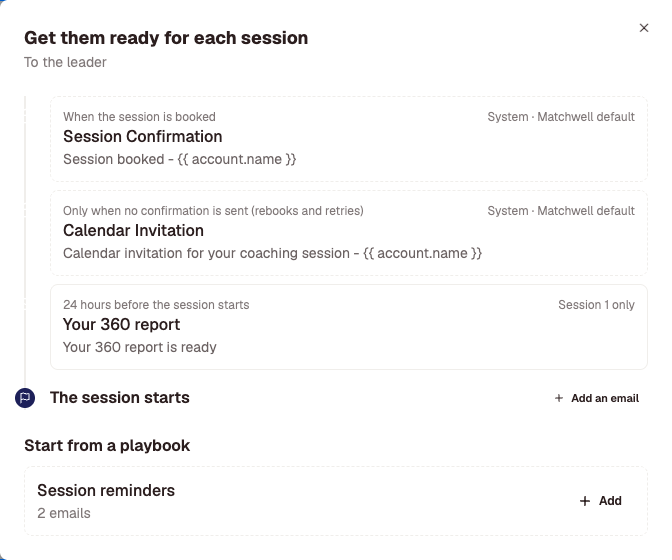
- Select a goal's row. A panel opens with the goal's emails on a timeline around its event.
- Either select Add beside a playbook under Start from a playbook, check the preview, and select Confirm; or select + Add an email and write your own.
- When you write your own, set When (for example, 1 day after the session is confirmed as completed) and, for sessions, Sends for: every session, or only the sessions you tick.
- Select Send me a test to check it, then Save.
Good to know about automated emails
- An email is live as soon as you save it. People who are already past the point it waits for may get it straight away. A playbook's preview tells you how many. Groups that are still drafts get nothing until you activate them.
- To stop an email, open it and select Delete. Emails that haven't been sent yet are cancelled. There is no pause.
- The standard Matchwell emails can't be turned off, but you can change their wording: open one and select Edit.
- Playbooks are ready-made sets of emails for a goal. Full-access admins manage them under Email, then Playbooks. A playbook sends nothing until you add it to an engagement.
Rename or delete an engagement
Select Edit engagement to change the name or description. An engagement that no group uses can be deleted from the same dialog with Delete engagement. Once a group uses it, it can't be deleted.
Didn't answer your question?
Send us a message and we'll reply by email.