Copy an engagement
Reuse one engagement's plan and automated emails in another project, or make a variant of it.
Last updated 22 October 2026
When to copy an engagement
Copy an engagement when another project needs the same plan, or when you want a variant of it in the same project. For example, a version with an extra session for one group. The copy is a new engagement. Changes to either one never reach the other.
Which should I use?
Matchwell has several ways to reuse a programme. Pick the one that matches what you want to do:
| You want to | Use |
|---|---|
| Run the same programme for a new intake of participants, with the same settings | Add a new group to the same project, on the same engagement |
| Give everyone on an engagement more sessions | Change the session allowance on that engagement |
| Use one engagement in another project, or make a variant of it in the same project | Copy the engagement |
| Keep a standard engagement that many projects start from, and update it over time | Save it to the library |
| Run the programme again with different settings, such as other coaches, other invitation wording, another CV2 project or another client | Copy the project |
What each one brings across:
| Copy engagement | Library template | Copy project | |
|---|---|---|---|
| Activities and session allowance | Yes | Yes | Yes, for every engagement |
| Automated emails | Yes, if you choose | Yes, if you choose | Yes |
| Emails that release a report or send a survey | Yes, after you choose the report and survey again | No, add them again afterwards | Yes, after you choose the report and survey again |
| The engagement's own email wording | Yes | No | Yes |
| The project's email wording, coaches and team access | No | No | Yes |
| Groups and participants | No | No | No |
| Later changes reach the copy | No | No, but you can publish new versions for future use | No |
Copy the engagement
Step 1: Open the copy page
Open the engagement and select Copy engagement at the top of the page.
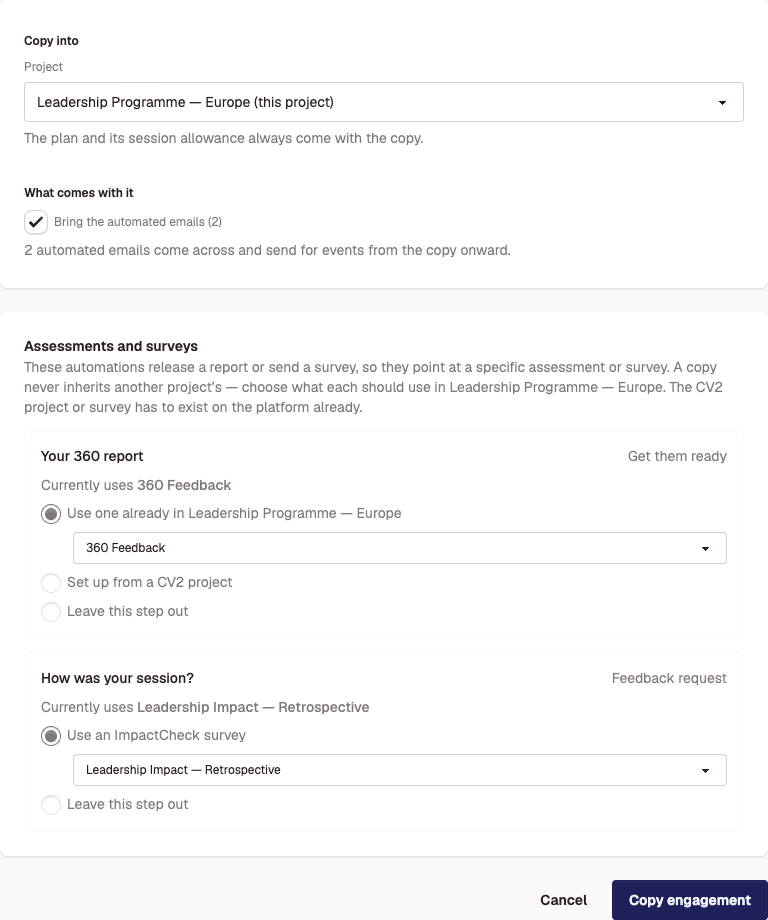
Step 2: Choose where it goes and what comes with it
- Under Copy into, choose the project. The engagement's own project is marked (this project). A copy in the same project gets "(copy)" added to its name.
- Leave Bring the automated emails ticked to copy the engagement's automated emails as well. The plan, the session allowance and the engagement's own email wording always come across.
Step 3: Choose the assessments and surveys
If an automated email releases a CV2 report or sends an ImpactCheck survey, choose what it should use in the target project:
- Use one already in the project: pick one of the project's existing assessments.
- Set up from a CV2 project: pick a CV2 project. The target project gets a new assessment for it.
- Use an ImpactCheck survey: pick the survey to send.
- Leave this step out: copy the email without this step.
Then select Copy engagement. It stays unavailable until every step has an answer.
After copying
- The copied automated emails are live. They send for groups that use the new engagement. A new engagement has no groups, so nothing sends until you add one.
- To use the copy, choose it as the engagement when you add a group.
- If a project shows as not possible in the project list, it is an ad-hoc project and the engagement has planned sessions. Ad-hoc projects can't hold planned sessions.
- You need to be an admin with access to both projects.
Didn't answer your question?
Send us a message and we'll reply by email.