Reuse an engagement from the library
Save an engagement as a template, and start a new engagement from it in any project.
Last updated 22 October 2026
What the library is for
The library holds engagement templates that any project in your account can start from. A template stores an engagement's activities, its session allowance and its automated emails. When you use a template, Matchwell copies it into the project as a new engagement. Later changes to the template never change engagements made from it.
Which should I use?
Matchwell has several ways to reuse a programme. Pick the one that matches what you want to do:
| You want to | Use |
|---|---|
| Run the same programme for a new intake of participants, with the same settings | Add a new group to the same project, on the same engagement |
| Give everyone on an engagement more sessions | Change the session allowance on that engagement |
| Use one engagement in another project, or make a variant of it in the same project | Copy the engagement |
| Keep a standard engagement that many projects start from, and update it over time | Save it to the library |
| Run the programme again with different settings, such as other coaches, other invitation wording, another CV2 project or another client | Copy the project |
What each one brings across:
| Copy engagement | Library template | Copy project | |
|---|---|---|---|
| Activities and session allowance | Yes | Yes | Yes, for every engagement |
| Automated emails | Yes, if you choose | Yes, if you choose | Yes |
| Emails that release a report or send a survey | Yes, after you choose the report and survey again | No, add them again afterwards | Yes, after you choose the report and survey again |
| The engagement's own email wording | Yes | No | Yes |
| The project's email wording, coaches and team access | No | No | Yes |
| Groups and participants | No | No | No |
| Later changes reach the copy | No | No, but you can publish new versions for future use | No |
Save an engagement to the library
- Open the engagement and select Save to library.
- Give the template a Name and a Description, and add a note under What changed if you want one.
- Leave Include this engagement's automations on to save the automated emails with it.
- Select Save template. The template is saved as version 1.
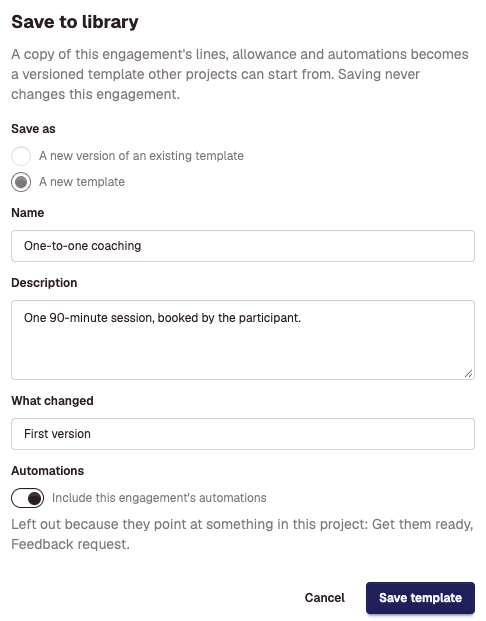
Automated emails that release a report or send a survey are always left out, because they point at an assessment or survey in this project. The dialog lists them by name. After you use the template, add those emails again in the new engagement.
To update a template, make the changes in an engagement and select Save to library again. Choose A new version of an existing template. Engagements made from earlier versions keep the version they were made from.
Start an engagement from the library
From the project that needs the engagement:
- Select Engagements in the project menu.
- Select Add from library. The button appears only when there is a template this project can use.
- Select Use beside the template, then select Apply.
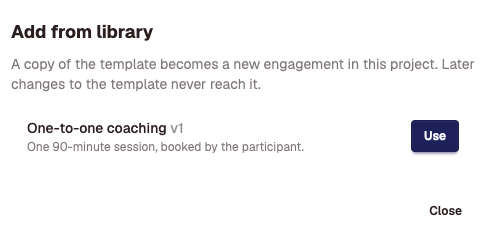
You can also start from the library itself. Select Library in the top menu, open a template, and select Apply to a project.
The new engagement's automated emails are live. They send for events in that project from then on. Check them on the engagement's page before you add groups.
Good to know
- A new template is visible to every admin in your account. To limit it, open the template and select Who can see it.
- A template with planned sessions can't be used in an ad-hoc project. Such projects show as not possible in the project list.
- Archive removes a template from the library and from Add from library. Engagements already made from it are not affected. An archived template can be deleted once no engagement points at it.
- Templates don't include coaches, groups or participants.
Didn't answer your question?
Send us a message and we'll reply by email.