Add a new group to a project
Start a new group of participants on an existing engagement, choose its coaches, and link its reports.
Last updated 22 October 2026
What a group is
A group is a set of participants who go through the same engagement together, such as one intake of a programme. Every group in a project uses one of the project's engagements. All of that engagement's sessions and automated emails apply to the group.
To run the same programme for a new intake, add a group to the existing project and choose the same engagement. The new group gets the same sessions and the same automated emails, and you have nothing else to set up. If the new intake needs different settings, such as a different invitation email or a different CV2 project, copy the project instead (see Copy a project).
Add the group
Step 1: Create the group as a draft
- Open the project and select Groups in the project menu.
- Select New Group.
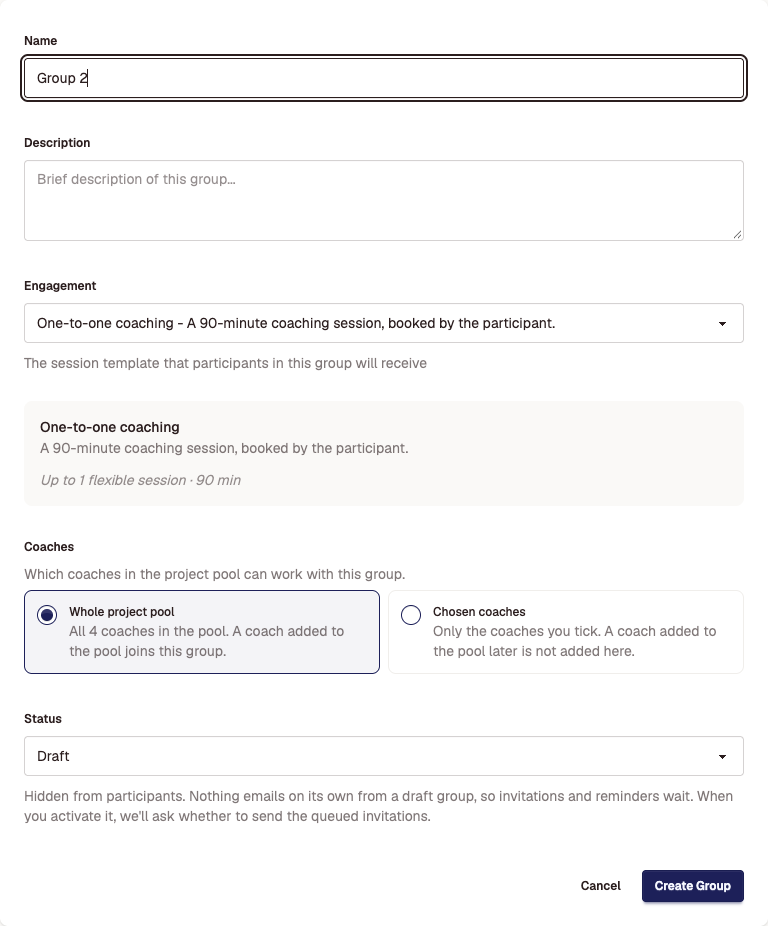
- Type a Name, and a Description if you want one.
- Under Engagement, choose the engagement this group follows. A summary of its sessions appears below.
- Under Coaches, choose who can coach this group (see the next step).
- Leave Status as Draft, and select Create Group.
A draft group is hidden from participants. No email goes out from it automatically, so you can add everyone first and send the invitations when you are ready.
Step 2: Choose the group's coaches
- Whole project pool: every coach in the project's pool can coach this group. A coach you add to the pool later can also coach it.
- Chosen coaches: only the coaches you tick. A coach you add to the pool later is not added to this group.
Use Chosen coaches when one project serves several groups with different coaches. You can change this later on the group's Edit page.
Step 3: Add the participants
On the group's page, open the participants list and either:
- select Add Participant to add one person (email, first and last name, time zone, and optionally their coach), or
- select Import, then Participants, to add many people from a spreadsheet. Select Download the template, fill it in, and upload it.
In a draft group, keep Queue invitation for activation ticked. The invitations are then sent when you activate the group, not before. Check each participant's time zone. It sets the times they see when they book.
Step 4: Link the group to its CV2 campaign (if you use CV2 reports)
If the project releases CV2 reports, Matchwell finds each participant's report in the CV2 campaign linked to their group. A new group has no campaign, so link it before its first report is due:
- Select Assessments in the project menu, and select the assessment's name.
- Under Link each group to a CV2 campaign, find the new group and select + Add campaign.
- Choose the campaign and select Bind.
The checklist then shows whether everyone can receive their report. If a participant is not in their group's campaign, their report email is held until they are.
Step 5: Activate the group
- On the group's page, select Edit, set Status to Active, and save.
- Matchwell shows who will be emailed. Leave the invitation box ticked to send the queued invitations now, then select Activate group.
From now on the group is live: participants can sign in and book, and the engagement's automated emails send for this group.
Good to know
- Create the group as a draft. A group created directly as Active skips the step that shows who will be emailed.
- A change to the engagement, such as more sessions, reaches every group that uses it. See Give participants more sessions.
- The invitation email uses the project's wording. To change it, select Email Templates in the project menu and override Participant Invitation. The change applies to every group in the project.
Didn't answer your question?
Send us a message and we'll reply by email.