Create a project
Start a new coaching programme, choose the kind of coaching, add coaches and check the settings.
Last updated 22 October 2026
What a project is
A project holds one coaching programme for a client. It has its own coaches, engagements, groups of participants, email wording and settings. Set up a project in this order:
- Create the project (this article).
- Add its coaches.
- Set up an engagement: the plan participants work through.
- Add a group of participants and activate it.
If you are running a programme you already have again, copy that project instead of starting blank (see Copy a project).
Create the project
- Select Projects in the top menu, then New Project.
- Under Start from, choose A blank project.
- Under What kind of coaching is this?, choose the kind (see below).
- Type a Project Name, and a Description if you want one.
- Leave Status as Draft while you set it up, and select Create Project.
You need permission to create projects. If you don't see New Project, ask an account owner.
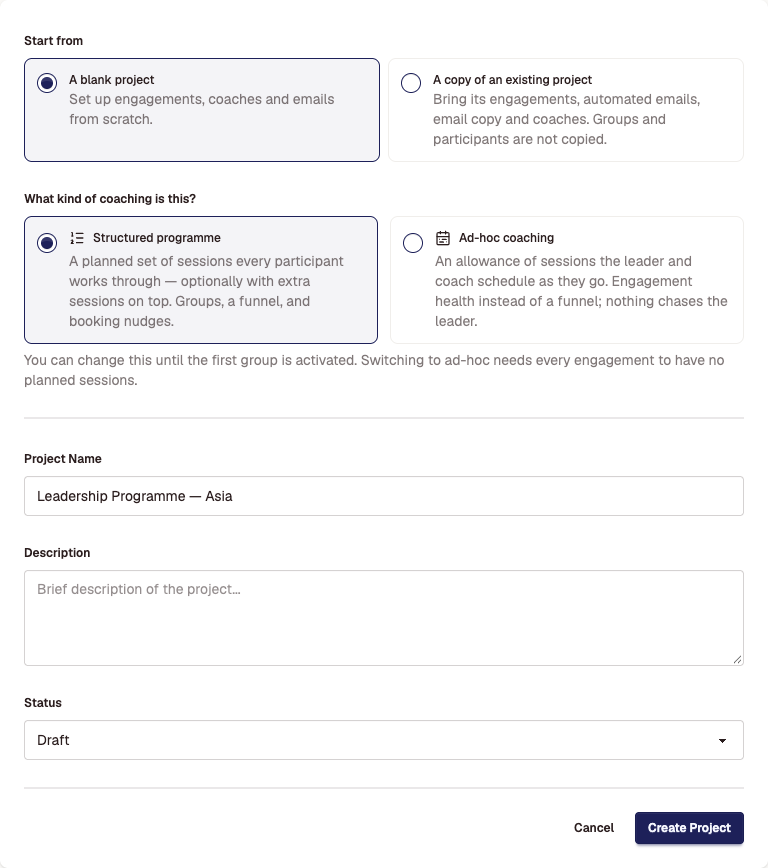
Structured programme or ad-hoc coaching
- Structured programme: every participant works through a planned set of sessions, and can have extra sessions on top. Matchwell tracks progress through the programme and can send booking reminders. Choose this for most programmes.
- Ad-hoc coaching: each leader has an allowance of sessions that they and their coach schedule as they go. There are no planned sessions, and Matchwell does not chase the leader. You set the Expected time between sessions; a leader with no session for longer than that shows as gone quiet, to you and to their coach.
You can change the kind until the first group is activated. After that it is fixed. Switching to ad-hoc needs every engagement to have no planned sessions.
Set up the project
Add coaches
Select Coach Pool in the project menu. Start the pool from one of the suggested lists, or select Add coaches, and tick the coaches who work on this programme. You can give each coach a Cap: the most participants they can have in this project at once. The pool shows whether each coach is ready to be booked, for example whether they have connected their calendar.
Check the settings
Select Settings in the project menu. The settings you are most likely to change are:
- Start Date and End Date of the programme.
- Email: the From name and Reply-to Email on this project's emails.
- Session Booking: Booking Mode (planned sessions in order, or in any order) and How far ahead participants can book.
- Video Conferencing: the Meeting Platform for sessions, such as Zoom.
- Cancellation Policy: how many hours' notice a participant must give, and the policy text they see.
Select Save Changes at the bottom of the form.
Other project pages
- Email Templates: change the wording of this project's system emails, such as the participant invitation.
- Assessments: connect CV2 assessments or uploaded reports, if the programme uses them.
- Materials: shared files such as joining instructions and pre-work. Participants and coaches see them, and you can link them in emails.
- Permissions: invite people from your team or your client to work on the project.
Then
Set up an engagement, then add a group of participants. When you are ready to start, set the project's Status to Active in its settings. Participants are invited when you activate their group, not when you activate the project.
Didn't answer your question?
Send us a message and we'll reply by email.