Copy a project
Set up a new project from an existing one, then change only what is different.
Last updated 22 October 2026
When to copy a project
Copy a project when you run the same programme again for a different region, client or year, and some of its settings must differ. Examples are a different coach pool, a different contact address in the invitation email, or a different CV2 project for the reports. The copy brings across the programme's set-up: its engagements, automated emails and email copy. You then change only what is different.
Which should I use?
Matchwell has several ways to reuse a programme. Pick the one that matches what you want to do:
| You want to | Use |
|---|---|
| Run the same programme for a new intake of participants, with the same settings | Add a new group to the same project, on the same engagement |
| Give everyone on an engagement more sessions | Change the session allowance on that engagement |
| Use one engagement in another project, or make a variant of it in the same project | Copy the engagement |
| Keep a standard engagement that many projects start from, and update it over time | Save it to the library |
| Run the programme again with different settings, such as other coaches, other invitation wording, another CV2 project or another client | Copy the project |
What each one brings across:
| Copy engagement | Library template | Copy project | |
|---|---|---|---|
| Activities and session allowance | Yes | Yes | Yes, for every engagement |
| Automated emails | Yes, if you choose | Yes, if you choose | Yes |
| Emails that release a report or send a survey | Yes, after you choose the report and survey again | No, add them again afterwards | Yes, after you choose the report and survey again |
| The engagement's own email wording | Yes | No | Yes |
| The project's email wording, coaches and team access | No | No | Yes |
| Groups and participants | No | No | No |
| Later changes reach the copy | No | No, but you can publish new versions for future use | No |
Before you start
- You need to be an admin with access to the project, and you need permission to create projects.
- If the project's automated emails release a CV2 report, the CV2 project for the new programme must already exist in CV2. You choose it while copying.
- If an automated email sends an ImpactCheck survey, decide which survey the new programme should use.
Copy the project
Step 1: Choose the project to copy
- Select Projects in the top menu, then New Project.
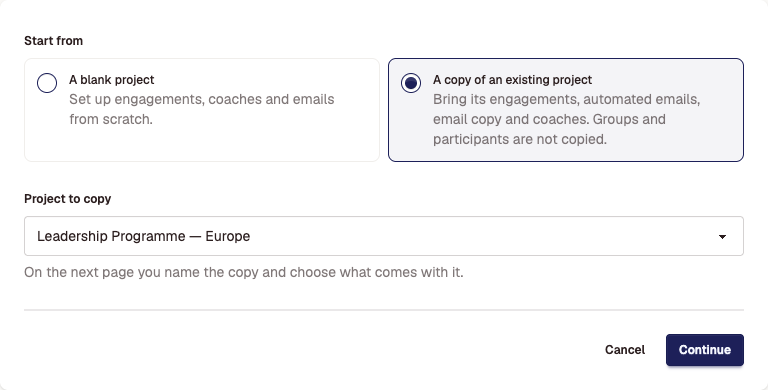
- Under Start from, choose A copy of an existing project.
- Under Project to copy, choose the project, and select Continue.
You can also start from the project itself. Open its Settings and select Copy this project at the bottom of the page.
Step 2: Name the copy and choose what comes with it
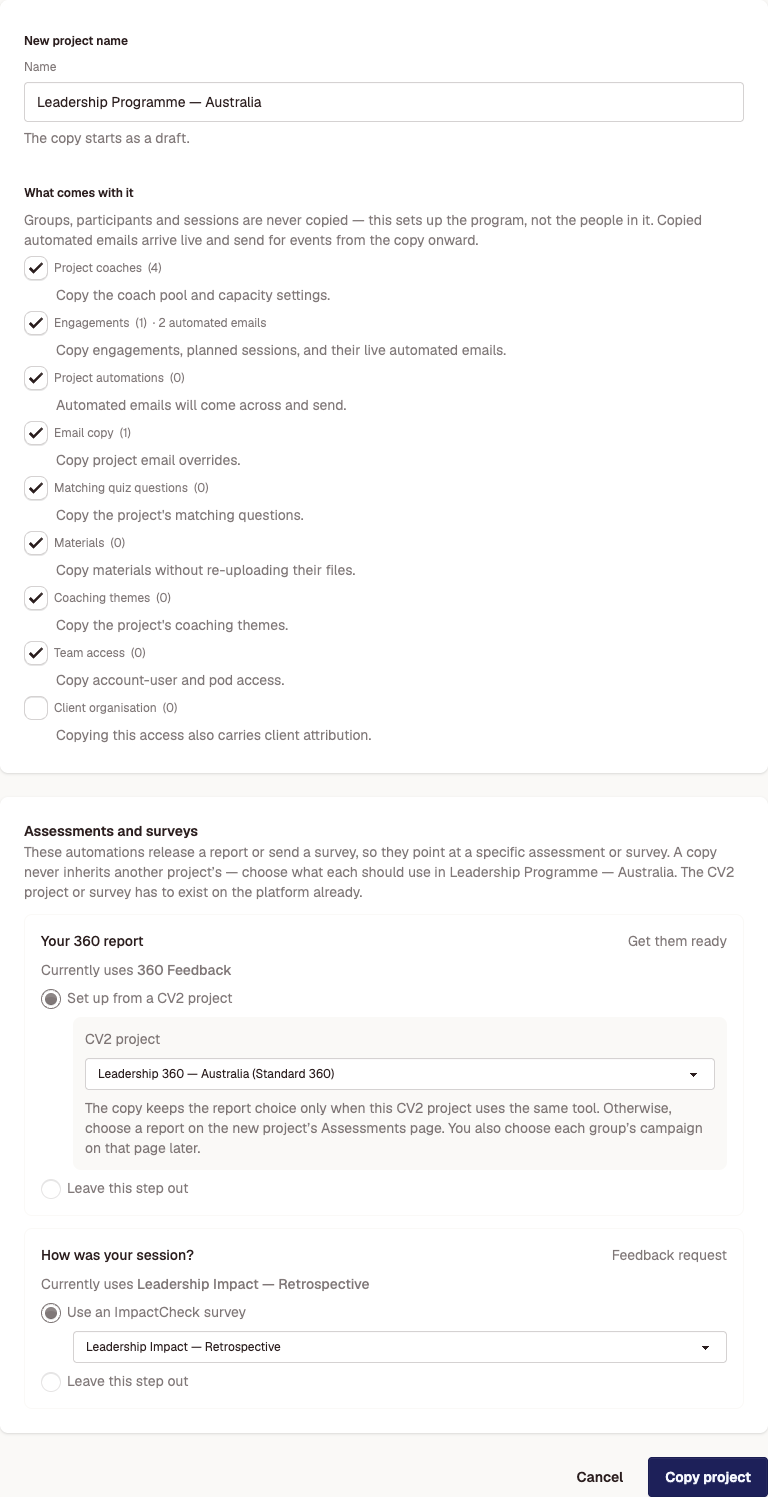
- Under New project name, type a name for the new project.
- Under What comes with it, tick what to copy. Everything is ticked except Client organisation. The number beside each item shows how many the project has.
| Item | What is copied |
|---|---|
| Project coaches | The coach pool and each coach's capacity. |
| Engagements | Every engagement, its planned activities and session allowance, and its automated emails. |
| Project automations | Automated emails set up for the whole project rather than one engagement. |
| Email copy | The project's own wording for system emails, such as the participant invitation. |
| Matching quiz questions | The project's coach-matching questions. |
| Materials | The project's materials. Files are shared, not uploaded again. |
| Coaching themes | The project's coaching themes. |
| Team access | Which admins and teams can open the project. |
| Client organisation | Client access to the project. This also marks the new project as that client's. |
Groups, participants and sessions are never copied. The copy has no start or end dates, and it starts as a draft.
Step 3: Choose the assessments and surveys
If an automated email releases a CV2 report or sends an ImpactCheck survey, the page lists it under Assessments and surveys. A copy never reuses another project's assessment, so answer each one:
- Set up from a CV2 project: pick the new programme's CV2 project. The copy gets a new assessment for it.
- Use an ImpactCheck survey: pick the survey the new programme should send.
- Leave this step out: the email is copied without this step. Use this when the new programme doesn't need it.
Copy project stays unavailable until every step has an answer.
Step 4: Copy
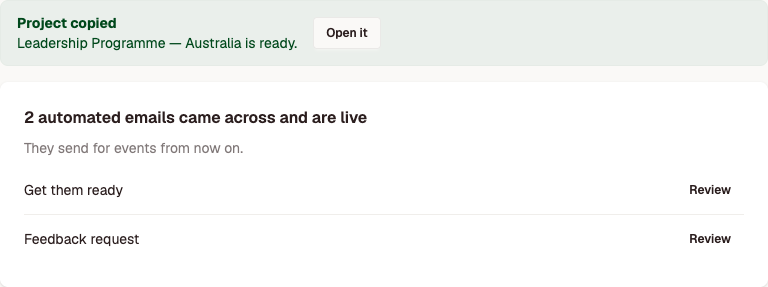
Select Copy project. The page confirms the new project and lists the automated emails that came across. Select Open it to go to the new project.
After copying
Work through these in the new project before you invite anyone:
- Coaches. Open Coach Pool and add or remove coaches for the new programme.
- Email copy. Open Email Templates. Emails marked Project copy came from the original project. Edit anything that should differ, such as a contact address in the Participant Invitation.
- Reports. Open Assessments. The report choice comes across only when the new CV2 project uses the same CV2 tool. If the assessment shows No report chosen, open it and choose the report participants receive.
- Groups. Add a group for the participants (Add a new group to a project). Then, on Assessments, link the group to its CV2 campaign.
- Automated emails. Open each engagement and check its automated emails. They are live: they send for events in the new project from the moment it was copied. Nothing sends until the project has participants in an active group.
Didn't answer your question?
Send us a message and we'll reply by email.